Menu Bar
The Dragonfly user interface includes a menu bar at the top of the program window, containing several menu options. Many menu items are similar to what you might find in other image processing and visualization applications.
 File Menu
| Description | |
|---|---|
|
New Session |
Creates a new session (see Starting New Sessions). |
|
Open the Organizer |
Opens the Dragonfly Organizer dialog, which provides an easy way to organize, manage, and share your data (see Dragonfly's Organizer). |
|
Import Image Files |
Opens the Import Datasets dialog, which guides you through the process of importing image files (see Using the Image Loader). |
|
Import DICOM Images |
Opens the Manage DICOM Images dialog, which lets you open and import images saved in the DICOM file format (see Using the DICOM Loader). |
|
Import Mesh Files |
Opens a dialog that lets you search for and select mesh files to import (see Using the Mesh Loader). |
|
Import Object(s) from File |
Opens the Import Object(s) from File dialog, which lets you import objects that are saved in a .ORSObject file. |
|
Import Selected Object(s) from File |
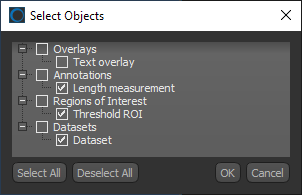
Lets you select the objects that you want to import from a .ORSObject file that contains multiple objects. Objects can be selected in the Select Object dialog, shown below.
|
|
Save Session |
Saves changes to the active session (see Saving Sessions). |
|
Save Session As |
Opens the Save As dialog, which lets you save the active session under a different name or to a particular location (see Saving Sessions). |
|
Load Session |
Allows you to load a previously saved session (see Loading Sessions). |
|
Save as Default Workspace |
Lets you save the arrangement of the current workspace as your default workspace (see Saving and Loading Workspaces). |
|
Load Default Workspace |
Loads your default workspace (see Saving and Loading Workspaces). |
|
Save a Custom Workspace |
Saves the arrangement of the current workspace to a .TXT file (see Saving and Loading Workspaces). |
|
Load a Custom Workspace |
Lets you load a saved custom workspace (see Saving and Loading Workspaces). |
|
Reset Original Workspace |
Restores the arrangement of the workspace to its original layout. |
|
Recent Datasets |
Displays a list of recently imported image files. You can select one from the list to import it (see Importing Image Files) |
|
Recent Meshes |
Displays a list of recently imported mesh files. You can select one from the list to import it (see Using the Mesh Loader). |
|
Recent Sessions |
Displays a list of recently loaded session files. You can select one from the list to load it (see Loading Sessions). |
|
Open Plugins |
Lets you directly access Dragonfly plugins from a drop-down menu. |
|
Exit |
Exits the application. |
 Tools Menu
The following items are available in the Tools menu:
| Description | |
|---|---|
|
Opacity Console |
Opens the Opacity Setting dialog (see Opacity Settings). |
|
Application Recorder |
Opens the Recorder dialog, which lets you record your full screen while working with Dragonfly. |
|
Auto Process Stack |
Opens the Auto Process Stack on the right sidebar, which enables real-time automatic processing of serial section 2D stack experiments (see Auto Processing Image Stacks). |
|
Bone Analysis |
Opens the Bone Analysis dialog, which helps you better understand complex metabolic bone diseases (see Dragonfly Bone Analysis). |
|
Camera Position Helper |
Opens the Camera Position Helper panel. |
|
Active Contour |
Opens the Active Contour panel (see Active Contours). |
|
Deep Learning Tool |
Opens the Deep Learning Tool dialog, in which you can edit and train deep learning models for image processing and segmentation tasks. |
|
Histographic Segmentation |
Opens the Histographic Segmentation dialog (see Histographic Segmentation). |
|
Segmentation Trainer |
Opens the Segmentation Trainer dialog (see Segmentation Trainer). |
|
HyperChannel Manager |
Opens the Hyper Dimensional tab on the left sidebar. This module facilitates the interactive visualization, manipulation, and data analysis of multi-dimensional datasets (see Multi-Dimensional Imaging). |
|
Infinite Toolbox |
Opens Dragonfly's Infinite Toolbox, in which you can submit, browse, and download extensions that implement new features and workflows (see Infinite Toolbox). |
|
Action Log Viewer |
Opens the Action Log Viewer console, in which you view all the actions that were performed by using the interface (see Action Log Viewer). |
|
Macro Builder |
Opens the Macro Builder, which provides an intuitive, visual way to build and edit complex macros or to combine multiple macros for batching (see Macro Builder). |
|
Macro Player |
Opens the Macro Player, in which you can record and play macros (see Recording and Playing Macros). |
|
Execute DOS Command |
Opens the Command dialog, in which you can enter common DOS commands. |
|
Start Command Prompt |
Opens the Command Prompt window (see Command Prompt). |
|
Start Command Prompt |
Opens the Command Prompt window in Administrator mode. |
|
Start Jupyter Notebook Tutorial |
Opens the Jupyter Notebook tutorials in your default web browser. |
|
Open All Users Folder in File Browser |
Automatically opens the Dragonfly directory with the Python All Users Extensions folder in your installed file manager. The Python All Users Extensions folder can otherwise be found in ProgramData > ORS > Dragonfly. |
|
Open Current User Folder in File Browser |
Automatically opens the Dragonfly directory with the Python Users Extensions folder in your installed file manager. The Python Users Extensions folder can otherwise be found in AppData > Local > ORS > Dragonfly. |
|
Python Console |
Opens the Python Console (see Python Console). |
|
Image Processing Toolbox |
Opens a contextual window, in which you can process images using standard image filters and arithmetic operations (see Image Filtering). |
|
Image Processing Panel |
Opens the Image Processing panel, if it is not available in the workspace (see Applying Saved Operations). |
|
Create a Dataset |
Opens a dialog that allows you to create a dataset (see Creating Artificial Datasets). |
|
Preferences |
Opens the Preferences dialog (see Setting Preferences). |
Developer Tools Menu
The following items are available in the Developer Tools menu:
| Description | |
|---|---|
|
Callback Observer |
Opens the Callback Observer dialog. Refer to the Dragonfly developer documentation for more information about the Callback Observer. |
|
Docstring Analyzer |
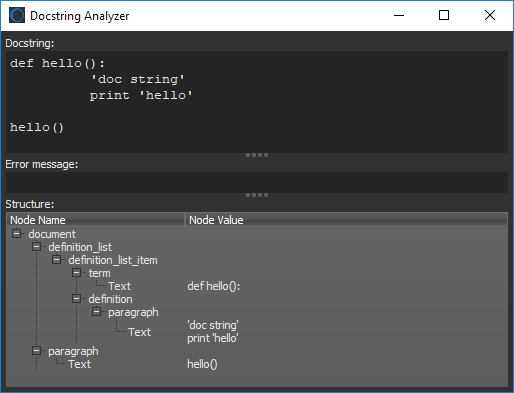
Opens the Docstring Analyzer, shown below, which is a debugging tool that lets you write docstrings and then see how the docstring will be parsed.
|
|
Instance Observer |
Opens the Instance Observer panel. Refer to the Dragonfly developer documentation for more information about the Instance Observer. |
|
Object Model Observer |
Opens the Object Model Observer dialog and graph. Refer to the Dragonfly developer documentation for more information about the Object Model Observer. |
|
Profiler |
Opens the Profiler panel, in which you can wrap methods dynamically and monitor the timing of an operation. Refer to the Dragonfly developer documentation for more information about the Profiler |
|
Reference Finder |
Opens the Reference Finder dialog. Refer to the Dragonfly developer documentation for more information about the Reference Finder. |
|
Reimporter |
Opens the Reimporter panel, in which you can re-import files modified outside of Dragonfly and update the application without restarting. |
|
Script Runner |
Opens the Script Runner dialog. Designed to execute custom code, the Script Runner can be used for introspection purposes on any Python object in the application, such as class instances, widgets, or ROIs. It can also be used to evaluate code snippets or to debug a few lines of code that is used in a file-based extension, such as a generic menu item. |
|
Context Observer |
Opens the Context Observer dialog, in which you can see details about the currently selected state.
|
|
Generic Action Generator |
Opens the Generic Action Generator dialog, which guides the implementation of customized actions that can be triggered by a keyboard key, a mouse click, or a combination of both (see Generating Actions). |
|
Generic Menu Item Generator |
Opens the Menu Item Generator dialog, which lets you easily define menu items that are not associated to any plug-in (see Generating Menu Items). |
|
Generic Property Panel Generator |
Opens the Generic Property Panel Generator, in which you can create new property panels for specialized workflows (see Generating Property Panels). |
|
Object Analysis Statistics Generator |
Opens the Object Analysis Statistics Generator, which simplifies the task of adding new parameters for analyzing objects (see Generating Object Analysis Statistics). |
|
Simple Dataset Filter Generator |
Opens the Filter Kernel Based Generator dialog, which helps you integrate new kernel-based filters into your image processing workflow (see Generating Simple Dataset Filters). |
|
Generic Slice Analysis Measurement Generator |
Opens the Generic Slice Analysis Measurement Generator, which lets you add new measurements for analyzing the slices in an image stack (see Generating Slice Analysis Measurements). |
|
Extract XML from Session or Object File |
Extracts the XML (Extensible Markup Language) that is appended after the binary data in *.ORSObject and *Session files to a new XML file. |
|
Python Plug-in Generator |
Opens the Python Plug-In Generator dialog. You can fully extend Dragonfly by writing modules in Python that implement specific tasks and workflows. |
|
C++ Plug-in Generator |
Opens the C++ Plug-In Generator dialog, You can fully extend Dragonfly by writing modules in C++ that implement specific tasks and workflows. |
|
Plugin Viewer |
Opens the Plugin Viewer panel on the right-side of the Dragonfly interface. |
 Help Menu
The following items are available in the Help menu:
| Description | |
|---|---|
|
Dragonfly Help |
Opens the Help TOC window pane, which lets you locate and access topics in the Dragonfly online Help system. |
|
Dragonfly Developer Documentation* |
Opens the Dragonfly technical documentation package, which provides information about the ORS model, helpers, service classes, as well as details about the interface methods and the ORS Python plug-ins. For developers interested in implementing new features for Dragonfly and for users who want to better understand the conventions and structure of the product. |
|
Contact Support |
Opens the Contact Support dialog, which lets you send a message directly to the ORS Support Center, as well as upload supporting files (see Contacting the Support Center). NOTE To use this function, you must be covered by a valid Maintenance & Support plan. |
|
Report an Issue |
Opens a dialog that can be used to report any undesirable behavior you may come across while working with Dragonfly (see Reporting Issues). |
|
Access Dragonfly Forums* |
Opens the Dragonfly forums, where you can ask questions, find answers, and share expertise with other users and developers. |
|
Request Write Access to Dragonfly Forums |
Allows you to request write access to the Dragonfly forums.
|
|
Recover Dragonfly Forums Write Access Credentials |
Lets you recover your write access credentials for the Dragonfly forums. |
|
Check for Updates* |
Allows you to automatically check for new program releases and download new versions from Object Research Systems (ORS) Inc. See Checking for Updates. |
|
Activate Product* |
Opens a dialog that allows you to activate your version of Dragonfly (see Activating Dragonfly). |
|
User Profile |
Opens the User Profile dialog, in which you can enter your name and contact information, as well as add a copyright notice (see Adding Your User Profile). |
|
About |
Opens a submenu, which provides access to information about the plug-ins available in the installed version of Dragonfly. Double-click an item to view details about a plug-in. You may be asked to access this information when reporting technical problems.
|
|
About Dragonfly |
Opens the About dialog, which displays information about the installed version of Dragonfly and licensed features. |


* Requires access to the Internet.